Keeping your camera gimbal’s firmware updated is crucial for unlocking its full potential, enhancing performance, and ensuring seamless operation. Just like the software on your smartphone or computer, gimbal firmware receives regular improvements and bug fixes from manufacturers. Neglecting these updates can leave you with outdated features, compatibility issues, or even hinder your gimbal’s overall stability. This comprehensive guide will walk you through the precise steps to update the firmware on DJI, Zhiyun, and Moza gimbals, ensuring your gear is always at its best.
What is Firmware and Why Do Gimbals Need Updates?
Firmware is a specific class of software that provides the low-level control for a device’s hardware. For camera gimbals, firmware acts as the operating system, dictating how the motors respond, how stabilization algorithms function, and how the gimbal interacts with your camera and control apps. Regular firmware updates bring a host of advantages. Primarily, they introduce improved performance, enhancing the gimbal’s responsiveness and precision in stabilization, leading to even smoother footage. Updates also frequently roll out new features, such as advanced shooting modes, improved tracking capabilities, or enhanced control options, expanding your creative toolkit. Moreover, bug fixes are a common and vital part of firmware updates, resolving known issues that might cause erratic behavior, connection drops, or other operational glitches. Manufacturers also release updates to ensure extended compatibility with newer camera models, lenses, and accessories, keeping your gimbal relevant as your gear collection evolves. Finally, some updates may even include enhanced security protocols, though this is less common for gimbals compared to networked devices.
Essential Preparations Before Updating Your Gimbal Firmware
Before you begin any firmware update, a few preparatory steps are critical to prevent potential issues and ensure a smooth process. First and foremost, always ensure your gimbal’s battery is sufficiently charged. Most manufacturers recommend a battery level of at least 50%, with some suggesting 80% or more to prevent power interruptions during the update. A stable internet connection is also paramount, as firmware files are downloaded from the manufacturer’s servers. Whether you’re using Wi-Fi or mobile data, confirm a strong signal to avoid corrupted downloads or disconnection errors. Next, you’ll need to download the relevant mobile app or desktop software for your specific gimbal brand, such as the DJI Ronin app, Zhiyun’s ZY Play app, or Moza Assistant/Master app. Ensure these applications are the latest versions available. While not always necessary, if your gimbal allows, backing up your custom settings can be a good precaution, though most updates preserve user profiles.
Step-by-Step Guide: Updating DJI Gimbal Firmware
Updating firmware on DJI gimbals is typically a straightforward process, often managed through their dedicated mobile application.
App-Based Method (DJI Ronin App)
For most modern DJI gimbals, including models like the DJI RS 3, RS 3 Mini, and Osmo Mobile series, the update is performed via the DJI Ronin app (or DJI Mimo for some Osmo models).
 DJI gimbal connected to a smartphone displaying a firmware update prompt in the Ronin app.
- Power On: Press and hold the power button to turn on your DJI gimbal.
- Launch App: Open the DJI Ronin app on your smartphone or tablet.
- Connect Gimbal: Tap “Connect to Gimbal” and select your specific DJI device from the list. Ensure Bluetooth is enabled on your mobile device.
- Check for Update: The app will usually prompt you with an “Update Now” banner at the top of the main page if new firmware is available.
- Start Update: Tap the “Update Now” prompt and follow the on-screen instructions to begin the download and installation.
- Do Not Interrupt: Crucially, do not turn off your gimbal, exit the app, or operate your mobile device during the update process.
- Completion: Once the update is successful, the app will display a notification. You can then tap “Exit” and restart your gimbal if prompted.
PC-Based Method (DJI Pro Assistant for Ronin)
Older DJI Ronin series gimbals, such as the Ronin-S, might require a desktop application for firmware updates.
- Download Software: Install the latest version of DJI Pro Assistant for Ronin on your PC or Mac from the official DJI website.
- Prepare Gimbal: Ensure the gimbal’s battery is above 80% and it is powered off.
- Connect to PC: Connect your Ronin gimbal to your computer using the provided USB-C cable.
- Launch Software: Open DJI Pro Assistant for Ronin and log in with your DJI account.
- Select Gimbal: Click on your gimbal’s icon to access the firmware update page.
- Select & Update: Wait for the firmware list to refresh, select the desired firmware version, and click “Update.” The software will download and install the firmware automatically.
- Restart: After the update is complete, restart your gimbal.
Step-by-Step Guide: Updating Zhiyun Gimbal Firmware
Zhiyun gimbals also primarily use a mobile application for firmware updates, though a desktop tool exists for some older or more complex procedures.
App-Based Method (ZY Play App)
For Zhiyun models like the Weebill S, Weebill 2, Crane 3 Lab, and others, the ZY Play app is the go-to.
- Power On & Standby: Turn on your Zhiyun stabilizer and ensure it’s in standby mode.
- Enable Bluetooth: Activate Bluetooth on your smartphone.
- Launch & Connect: Open the ZY Play app and connect to your stabilizer.
- Firmware Notice: If a new firmware version is available, a notice will appear at the top of the app.
- Download Firmware: Click the notice and download the firmware. For some models, particularly the Weebill Lab, it’s important to download the firmware via Bluetooth first, and then connect to the gimbal’s Wi-Fi (often with default password “12345678”) if prompted for the actual transfer.
- Start Update: Once downloaded, navigate back to the app and click “Start update.”
- Keep App Active: Do not navigate away from the ZY Play app or lock your phone during the update. Keep the screen open and active until completion.
- Restart: The gimbal may power down and restart automatically. If not, restart it manually.
PC-Based Method (ZUN Gimbal Tools)
For certain Zhiyun models, particularly older Crane series gimbals, a desktop application might be necessary.
- Download Firmware: Visit the official Zhiyun website and download the latest firmware file (.bin suffix) for your specific gimbal model to your computer.
- Download Software: Install the ZUN Gimbal Tools software on your PC.
- Connect Gimbal: Connect your Zhiyun gimbal to your computer using a USB cable.
- Launch Software: Open ZUN Gimbal Tools, click “Open” to connect to the gimbal.
- Upgrade Tab: Select the “Firmware Upgrade” tab.
- Browse & Upgrade: Click “Browse” to locate the downloaded firmware file, then click “Upgrade.”
- Wait for Completion: Allow the process to finish. The gimbal may power down upon completion.
Step-by-Step Guide: Updating Moza Gimbal Firmware
Moza gimbals, from the Mini series to the Aircross and Air models, often utilize desktop software or a mobile app for their firmware updates.
PC-Based Method (MOZA Assistant)
This method applies to many Moza gimbals, including the Moza Mini, Air, and Air 2.
- Download Software: Install the latest MOZA Assistant software on your Windows or Mac computer from the official Gudsen Moza website.
- Enter Upgrade Mode: Turn off your gimbal. Now, you need to enter “upgrade mode” or “boot mode.” This usually involves a specific button combination, such as holding down the joystick button and then pressing the On/Off button until a “boot mode” or similar prompt appears on the gimbal screen or the LED turns solid blue.
- Connect to PC: Connect your Moza gimbal to your computer using a Micro USB or USB Type-C cable.
- Run Software: Open MOZA Assistant. Ensure your computer has a stable internet connection. The software should automatically detect the device and load available firmware.
- Start Upgrade: Click the “Upgrade” button. MOZA Assistant will download and install the latest firmware.
- Do Not Interrupt: Do not turn off the gimbal or unplug the USB cable during the update.
- Completion & Restart: A prompt will indicate successful completion. Unplug the USB cable and restart your gimbal. A simple gyroscope calibration is often recommended after a firmware update for Moza gimbals.
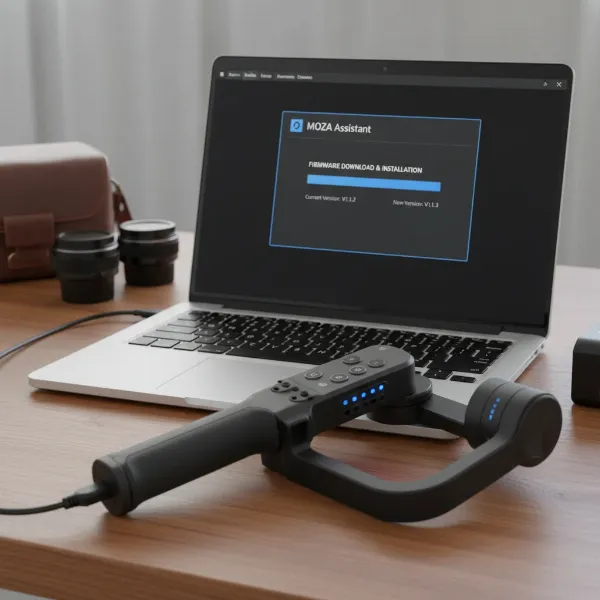 Moza gimbal connected to a PC, with the MOZA Assistant software displaying the firmware update process.
Mobile App Method (MOZA Master App)
For newer Moza gimbals like the Aircross 2, the MOZA Master App can be used for updates.
- Launch App: Get your phone and launch the MOZA Master app.
- Connect Gimbal: Swipe until you see your gimbal (e.g., Aircross 2), then tap “Connect.”
- Firmware Prompt: If an update is needed, a popup will ask if you want to upgrade the device. Click “Confirm.”
- Start Download/Update: Confirm again to start the firmware download and update process.
- Monitor Progress: The app will show an upgrade progress percentage. Wait for it to reach 100%.
- Restart: Once finished, the gimbal may restart automatically.
Troubleshooting Common Firmware Update Issues
Despite careful preparation, firmware updates can sometimes encounter hiccups. Knowing how to troubleshoot these common problems can save you a lot of frustration.
“Firmware updates are essential for optimal gimbal performance, but patience and adherence to manufacturer guidelines are key to avoiding common pitfalls like power interruptions or network issues.” – Alex Chen, Lead Gimbal Technician at StabilizeNow.com
- Update Failure/Stuck Progress:
- Low Battery: The most frequent cause. Always ensure your gimbal’s battery is above the recommended threshold (usually 50-80%) before starting.
- Poor Network Connection: A weak or unstable internet connection can corrupt downloads. Try switching from Wi-Fi to cellular data, or vice versa, or try a different Wi-Fi network. Clearing the app’s cache and data can also sometimes resolve connection issues.
- Interruption: Never power off the gimbal, unplug cables, or exit the app during an update. If the progress bar is stuck, restart the gimbal and the mobile device/PC application, then attempt the update again.
- Gimbal Motor Overload After Update:
- This error can sometimes occur if an update introduces calibration errors or if the gimbal’s internal logic is disrupted.
- Inspection: Power off the gimbal and carefully inspect for any physical obstructions, dust, or particles jamming the motors. Ensure any gimbal guards are removed.
- Recalibration: Follow your gimbal’s specific instructions to perform a gimbal calibration (also known as IMU calibration or auto-tune). This often resolves rotational drift or erratic movements.
- Erratic Movements/Unresponsiveness:
- A post-update recalibration (gyroscope/accelerometer) is often necessary to ensure optimal stability and responsiveness. Refer to your gimbal’s manual for precise steps.
Expert Tips for a Smooth Update Experience
- Always Use Official Sources: Only download firmware files and companion software from the official manufacturer’s website (DJI, Zhiyun, Gudsen Moza) or their official app stores. Third-party downloads can be unreliable or even malicious.
- Read Release Notes: Before updating, take a moment to read the firmware release notes. These documents detail the new features, bug fixes, and any specific instructions or warnings for that particular update.
- Avoid Distractions: Dedicate your full attention to the update process. Avoid using your phone for other tasks or operating your computer for demanding applications during the update.
- Calibrate After Update: As mentioned, performing an IMU or gyroscope calibration after a major firmware update can help ensure your gimbal’s motors and sensors are perfectly aligned and functioning optimally.
- Keep Cables Handy: Always have the correct USB data cable for your gimbal readily available, even for app-based updates, as a PC connection might be needed for troubleshooting.
Conclusion
Regularly updating the firmware on your DJI, Zhiyun, or Moza gimbal is not just a recommendation; it’s a critical practice for maintaining peak performance, enjoying the latest features, and ensuring the longevity of your equipment. From unlocking new shooting modes to resolving subtle operational quirks, each update is designed to refine your experience and keep your footage as smooth and professional as possible. By following these detailed steps and best practices, you can confidently manage your gimbal’s firmware, minimize risks, and get back to capturing breathtaking, stabilized video. Don’t let outdated software hold back your creative vision – embrace the power of updated firmware.
Frequently Asked Questions
How often should I update gimbal firmware?
It’s generally recommended to check for and apply firmware updates whenever they are released by the manufacturer. While you don’t need to check daily, a monthly or bi-monthly check through your gimbal’s app or desktop software is a good practice to ensure you benefit from the latest improvements and bug fixes.
What if my gimbal gets “bricked” during an update?
A “bricked” gimbal, meaning it’s unresponsive and unusable, is a rare but serious outcome of a failed firmware update. If this happens, immediately consult the manufacturer’s support resources or contact their customer service. Sometimes, there are specific recovery modes or reset procedures that can revive the device.
Can I downgrade gimbal firmware?
Some manufacturers, particularly DJI, may offer options to downgrade firmware, often through their desktop assistant software or by holding specific button combinations in the mobile app. This can be useful if a new update causes unexpected issues with your specific camera setup. However, always proceed with caution and only if guided by official support.
Is it safe to update firmware over mobile data?
Yes, it is generally safe to update firmware over mobile data, provided you have a strong, stable connection and sufficient data allowance. However, a stable Wi-Fi connection is often preferred due to potentially faster speeds and reduced risk of interruptions, especially for larger firmware files.